File Basics
The file browser
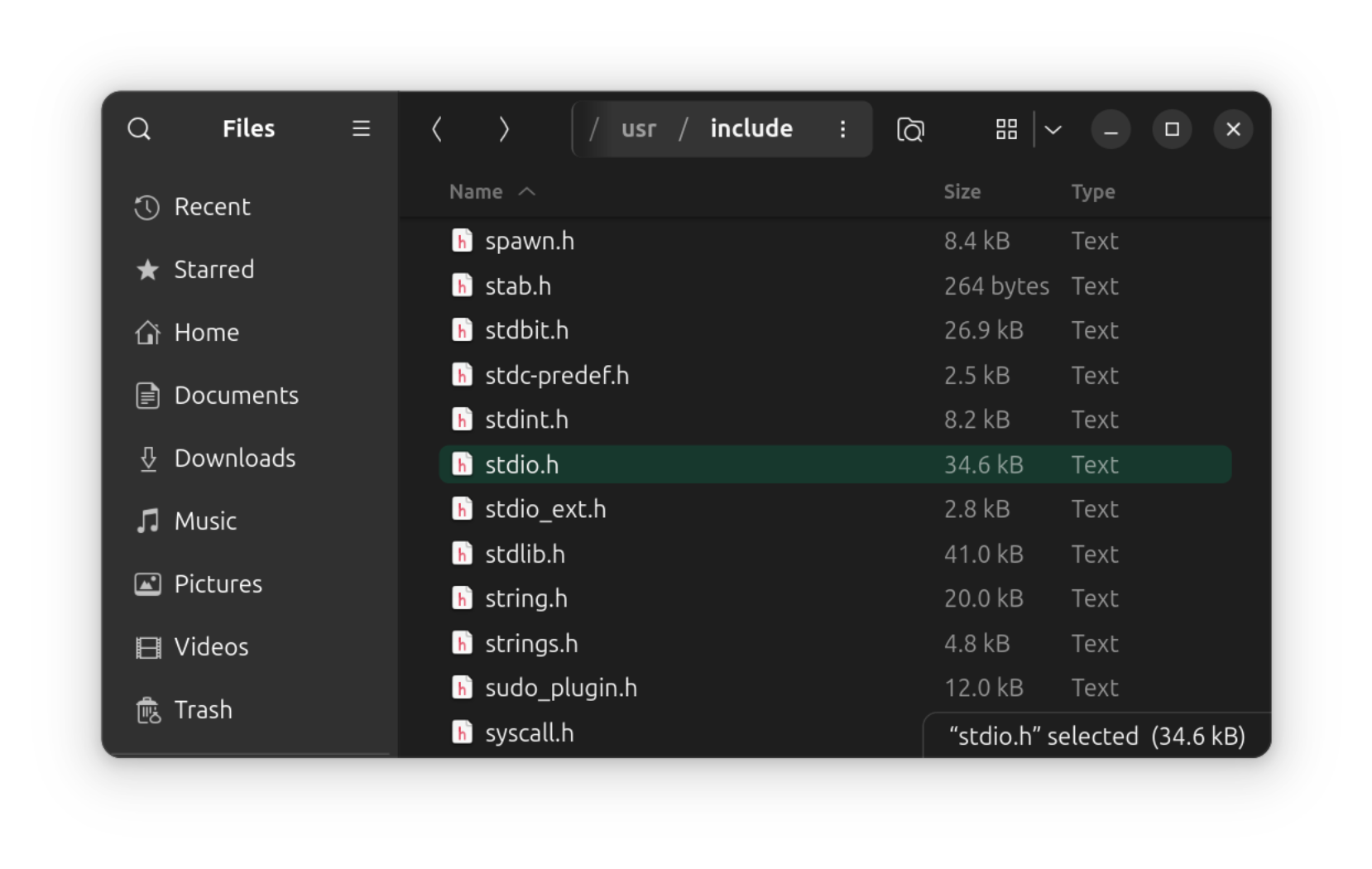
When you think of a file system, you might imagine something like this, the file browser.
File browsers, or file explorers, let you see what files and directories are available, open, copy, move, delete them, etc.
But this is just a view of the file system. In reality, files do much more under the hood of the operating system.
The File Abstraction
- What is a file?
- A way to group sequences of binary data.
That’s basically all files are. No naming, no hardware specifics, no file formats.
Examples of abstractions
- Abstraction: lock and key
- Tumbler lock
- Wafer lock
- Login password
- Cryptographic keys
- Abstraction: steering wheel
- Rack and pinion
- Drive by wire
- Abstraction: electrical outlet
- Diesel generator
- Water wheel
Remove (abstract away) differences, leaving what’s common.
Why use the file abstraction?
Files capture what’s common about storage hardware.
What are some different data storage technologies?
- Magnetic, optical, flash, RAM
What’s different about them?
What’s common about them?
- They provide a way to read and write binary on a physical medium.
Files abstract away the specifics of using different hardware technologies. As we’ll see, the abstraction can be applied to other hardware, such as network devices, and even used to create non-physical files, such as pipes.
File systems group together data on storage medium providing a large addressable sequence of bytes (usually as blocks).
How is the abstraction used?
- Reading bytes of data
- Writing bytes of data
Abstractions are defined by how they are used, i.e., their interface.
We need to be able to write data, extending the size of files, delete data, and read it, independently of where it may lie on the physical storage medium.
What other common operations can we do on files? Seek? Open/close?
Do other devices besides storage hardware fit this abstraction?
We’ll be using the UNIX-style file abstraction in this class.
- Used in all modern OSes (GNU/Linux, MacOS, Windows)
Looking at a file’s contents
We can use the hexdump utility to view the raw bytes of
a file in hexadecimal form.
hexdump -C hello.c#include <stdio.h>
int main() {
printf("hello, world!\n");
}00000000 23 69 6e 63 6c 75 64 65 20 3c 73 74 64 69 6f 2e |#include <stdio.|
00000010 68 3e 0a 0a 69 6e 74 20 6d 61 69 6e 28 29 20 7b |h>..int main() {|
00000020 0a 20 20 70 72 69 6e 74 66 28 22 68 65 6c 6c 6f |. printf("hello|
00000030 2c 20 77 6f 72 6c 64 21 5c 6e 22 29 3b 0a 7d 0a |, world!\n");.}.|
00000040The above output is split into four columns. The first column denotes
the offset into the file, in hexadecimal. The second and third columns
show the contents of the file in hexadecimal representation. The final
column shows the ASCII representation of the file’s contents. See
man ascii for more details about ASCII encoding.
What about file extensions?
Extensions are a convention used by applications.
Files are oblivious to their extension, .c,
.txt, .mp3, etc.
The map is not the territory.
What does a file abstraction that doesn’t capture names or file formats mean for file extensions?
The file command
file looks at contents of the file instead of
extension.
file hello.c
file beep.mp3

cp hello.c hello.mp3
cp beep.mp3 beep.c

file hello.mp3
file beep.c

xdg-open hello.mp3
xdg-open beep.c

xdg-open hello.c
xdg-open beep.mp3
file is not bullet-proof. Some malware will modify the
magic bytes to avoid detection.
Some file types
- Text files: Strings of characters.
- Program files: Sequences of machine code.
- Images, music, etc.: Sequences of bytes in a format recognized by applications.
Magic bytes
# Confirm file type
file beep.mp3

# Check magic bytes
hexdump -C beep.mp3 | head

# Compile and check magic bytes
gcc -o hello hello.c
file hello
hexdump -C hello | head
Masquerading
Masquerading: Masquerade File Type
ILOVEYOU Worm
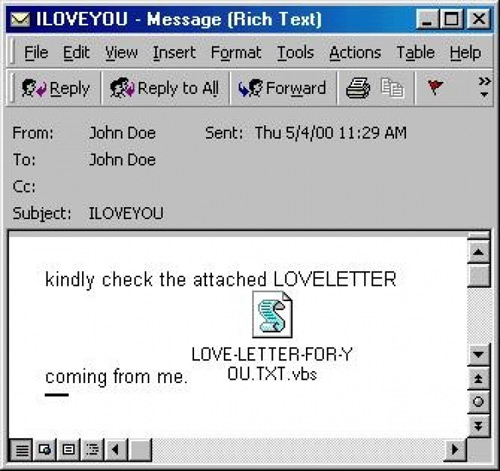
The creator of the ILOVEYOU worm, Onel de Guzman, was a hacker from the Philippines. Philippine prosecutors tried to charge him for creating the worm, but in the end couldn’t because at the time the Philippines lacked any laws regarding cyber crime.
- Link for more info
- Email attachment: LOVE-LETTER-FOR-YOU.TXT.vbs
- .vbs hidden, so users clicked on what they thought was a textfile
- .vbs is a script that gets executed
By Mario23, Public Domain, https://commons.wikimedia.html/w/index.php?curid=19189003
CRASHOVERRIDE
EXEC xp_cmdshell 'move C:\Delta\m32.txt C:\Delta\m32.exe';The above command was ran in a compromised MS-SQL server to convert a .txt file containing malicious code into a .exe file so that it could be run without setting off file-extension based malware detection.
IcedID
The following link describes how an information stealer called IcedID used polyglot files, which are files that are written in multiple valid programming languages and whose execution depends on the programming running them.
More Than Meets the Eye: Exposing a Polyglot File That Delivers IcedID
How do files get named?
If the file itself doesn’t store its own name, how do files get their name?
Directories
Directories map the names of files to the file
- Think pointers in C
- Think name to phone number
The map is not the territory
Files are given unique IDs
- OS kernel assigns ID to file.
- Called inode numbers.
- Each inode number maps a file to an inode, a structure
containing metadata about the file. This metadata includes:
- File size.
- File owner.
- File access rights.
- And more.
Take a class in or read about operating systems class to find out how file systems are implemented.
Why separate names from files?
- Renaming is easy
- We can give many names to the same file (links)
The phonebook analogy: the phone numbers are linked to the house or phone. The name is connected only by a phone directory (contact list).
Directories are also files
A directory behaves exactly like an ordinary file except that it cannot be written on by unprivileged programs, so that the system controls the contents of directories.
— The UNIX Time-Sharing System
Example directory file contents
| Name | inode number |
|---|---|
| hello | 44214038 |
| hello.c | 44214011 |
| beep.mp3 | 44214055 |
ls -iMove versus rename
- How do we rename a file?
- How do we move a file?
Renaming and moving are actually the same command in unix:
mv for “move”.
Links
- Hard link:
ln hello.c hello-link.c - Soft link:
ln -s hello.c hello-link.c - Difference between hard links and soft links?
- Hard links: ln source destination
- Soft links: ln -s source destination
- Hard links share the same inode as the source (really just a new
directory entry)
- All files are essentially hard links to inodes.
- Like adding a new door to a house. Same file (house), new door (directory entry)
- Remove a door (file), the house (inode) remains
- Soft links have a new inode (new file)
- Like building a tunnel to a house.
- Remove the house (inode), tunnel (soft link) leads nowhere.
- Remove the tunnel (soft link), the house (inode) remains.
- Soft links can do a few things that hard links can’t.
- Soft links can link to directories, whereas hard links can’t because that would make it possible to create an infinite loop.
- Soft links can also link to files across different volumes; hard links can’t do this because they must link to an inode number within the same volume.
Directories within directories
- Can directories contain other directories?
- Yes! Directories are also files
- What does this result in?
- A hierarchical file system
File system hierarchy
Conventions
- In Unix, the root directory has inode 2.
- inode 0 is a null value, and inode 1 is used to track bad blocks on the disk. See https://docs.kernel.org/filesystems/ext4/special_inodes.html fore more information about special inode numbers on the ext4 file system (the default for many Linux machines).
- Remember what the special directories
.and..?
Example file system hierarchy
ls -di1 / /usr/ /usr/bin/
The above command shows the inode numbers of the /,
/usr/ and /usr/bin/ directories.
- The
dflag tolsmeans to print information for directories themselves, not their contents. - The
iflag means to print files’ inode numbers. - The
1flag means to print each file’s information on a separate line.
Review: Absolute versus relative paths
- Absolute paths
- Start with
/. - Ignore the current working directory.
- Start with
- Relative paths
- Do not start with
/. - Are relative to the current working directory.
- Do not start with
Extending the file abstraction
- Network sockets
- Pipes
- Random number generation,
/dev/urandom /dev/null- RAM itself,
/dev/mem - Kernel settings and information
/proc - Graphics
- Peripherals, e.g., keyboard and mouse
- Temperature sensors and other measurement devices
The file abstraction is useful
- Can be used for I/O with all hardware.
- Other kinds of I/O in practice
- Sockets
- Raw access
- Etc.
Other topics for an OS class
- Permissions and security
- Implementing file systems
- Kernel design, layered approaches
- Block versus character devices
- Sockets and networking
Key takeaways
- A file is an abstraction
- How file hierarchies work
- Referring to files with paths
Most commonly known for persistent hardware storage, but a file does not mean data on a disk (you can have that without a file)
But it is an abstraction for reading and writing sequences of bytes which can apply to any i/o (stdio.h defines the Unix syscall and libc conventions)
Directories are special files that store mappings from names to other files
If a directory contains a mapping to another directory file, we have a directory hierarchy
Referring to files using relative and absolute naming (using the Unix convention)
Relative paths are relative to the current working directory, which is stored with a running program (process)