Programming Environment
COP-3223H
Table of Contents
Three virtues of a great programmer
"According to Larry Wall(1), the original author of the Perl programming language, there are three great virtues of a programmer; Laziness, Impatience and Hubris
- Laziness: The quality that makes you go to great effort to reduce overall energy expenditure. It makes you write labor-saving programs that other people will find useful and document what you wrote so you don't have to answer so many questions about it.
- Impatience: The anger you feel when the computer is being lazy. This makes you write programs that don't just react to your needs, but actually anticipate them. Or at least pretend to.
- Hubris: The quality that makes you write (and maintain) programs that other people won't want to say bad things about."
Version control
- Records changes to code (or any file)
- Synchronizes between servers
Why use version control?
- Large, complicated code base
- Many developers working together
- Tracking causes of bugs
- Rewind history to prior versions
- Log who made code changes
Analogy: Bank account balance
| TOTAL | $31 |
Says nothing about how you got there. Why do I only have $31?
- Did I spend too much this week?
- Did I not get paid?
Bank account transactions
| Description | Amount |
|---|---|
| Income | $42 |
| Gas | -$15 |
| Food | -$6 |
| Reimbursement | $10 |
| TOTAL | $31 |
Transactions are (generally) append-only. You only add transactions.
You can always reconstruct the total from your transactions.
Version Control Systems
- Record each version to a log
- Document developer descriptions of change
More on git
- Use the git Cheat Sheet
- Read the Pro Git book
- Watch my lecture from systems software
Overview of the git project
Editing files with emacs

Tutorial
(Everyone should have completed the emacs tutorial as homework.)
After logging into eustis, run
emacs -f help-with-tutorial
| Keyboard | Mnemonic | Description |
|---|---|---|
| Ctrl-X Ctrl-C | Ctrl-C kills processes in bash | Exit emacs |
keypression-mode
I'll use a mode that shows you the keys I press
keypression-mode
Overview
Emacs is a text-editor, designed to be
- Self-documenting (Ctrl-h for help)
- Customizable (change keybindings)
- Extensible (write packages)
More than text editing
- Invoke sub-processes (make, terminal, etc.)
- Email, IRC, etc.
- git integration
- File management and viewing
- Windowing
- org-mode (this class's webpage!)
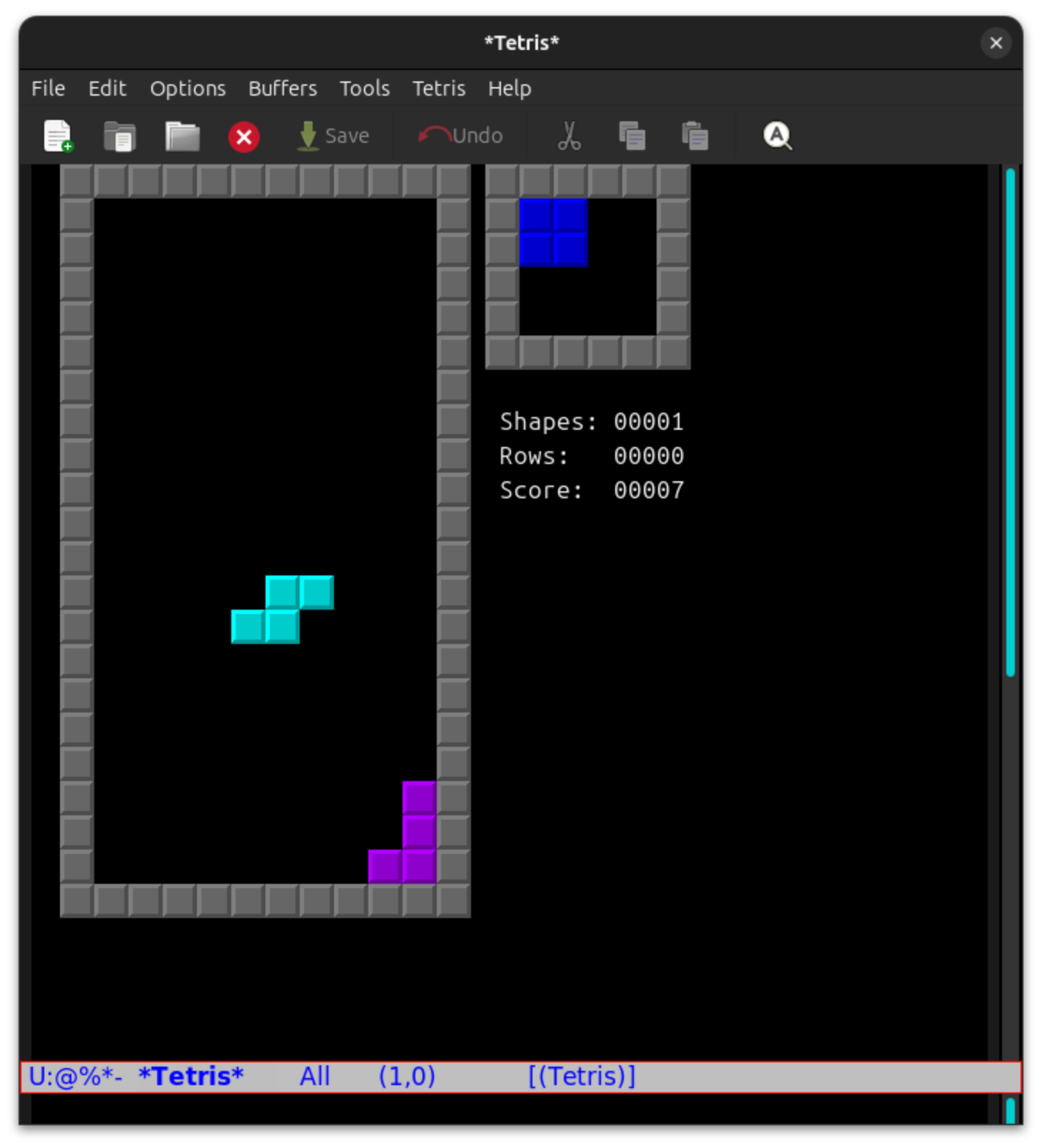
Alt-x tetris
Easy cursor movement
Can use keyboard navigation keys
- Up, down, left, right
- Pg-up, Pg-down
- Home, end
Warning: cannot use the mouse when in terminal only, though emacs does have mouse support in windowed versions.
The emacs way
| Keyboard | Mnemonic | Description |
|---|---|---|
| Ctrl-p or <up> | p for previous | Previous line |
| Ctrl-n or <down> | n for next | Next line |
| Ctrl-f or <right> | f for forward | Forward a character |
| Ctrl-b or <left> | b for backward | Backward a character |
| Ctrl-a or <home> | a is beginning of the alphabet | Beginning of line |
| Ctrl-e or <end> | e for end | End of line |
| Ctrl-v or <pgdown> | v looks like a down arrow | Next page |
| Alt-v or <pgup> | Alternative of Ctrl-v | Previous page |
Emacs documentation refers to a Meta key, but on PC keyboards this is the Alt key.
You can also use Meta by hitting Esc and then the key, e.g., Esc then v is the same as Alt-v together.
Emacs key bindings and modifiers
Many key bindings use the control key (Ctrl) and/or the Meta key (now Alt)
On macs the command key is distinct from the control key. The Meta key is the mac's option key (which you can set to be the alt key in Terminal's preferences).
Deleting text
| Keyboard | Description | Mnemonic |
|---|---|---|
| <backspace> | Delete a character behind you | it's the backspace key |
| Alt-<backspace> | Delete a whole word behind you | alt for alternative version |
| Ctrl-d | Delete a character in front | d for delete |
| Alt-d | Delete a word in front | d for delete, alt for alternative version |
https://www.gnu.org/software/bash/manual/bash.html#Commands-For-Moving
bash has emacs-like commands.
Kill (cut) and yank (paste)
| Keyboard | Description | Mnemonic |
|---|---|---|
| Ctrl-k | Kill (cut) until the end | k for kill |
| Alt-<backspace> | Kill (cut) a word behind | alt for alternative version of <backspace> |
| Alt-d | Kill (cut) a word in front | d for delete, alt for alternative version |
| Ctrl-y | Yank (paste) | y for yank |
Marking specific text to kill
| Keyboard | Description | Mnemonic |
|---|---|---|
| Ctrl-<space> | Start marking | mark a space |
| Ctrl-w | Kill from the mark | |
| Ctrl-y | Yank (paste) | y for yank |
Ctrl-<space> to start highlighting. Move the cursor, then Ctrl-w to cut from the mark. Ctrl-y to yank (paste)
Search
| Keyboard | Mnemonic | Description |
|---|---|---|
| Ctrl-s | s for search | Search for text |
- Press Ctrl-S
- Start typing the string
- Press Ctrl-S to find more instances
- Press <enter> to stop or press Ctrl-G to cancel
Go to a line number
| Keyboard | Mnemonic | Description |
|---|---|---|
| Alt-g g | g for go | Jump to a given line |
- Hold Alt and press g, then press g again
- Type a line number
- Press <enter> to jump to that line
Advanced navigation
Move by words
| Keyboard | Mnemonic | Description |
|---|---|---|
| Alt-f or Alt-<right> | f for forward | Forward a character |
| Alt-b or Alt-<left> | b for backward | Backward a character |
| Alt-a or <home> | a is beginning of the alphabet | Beginning of sentence |
| Alt-e or <end> | e for end | End of sentence |
Move to top and bottom
| Keyboard | Mnemonic | Description |
|---|---|---|
| Alt-> | > is like a right arrow | End of document |
| Alt-< | < is like a left arrow | Beginning of document |
File handling
| Keyboard | Mnemonic | Description |
|---|---|---|
| Ctrl-x Ctrl-s | s for save | Save file |
| Ctrl-x Ctrl-f | f for file | Open file |
| Ctrl-x Ctrl-w | w for write | Save file under another name |
Can use tab completion when opening files as well
Directory browsing
Emacs also has extensive in-editor file management, such as interactive directory browsers. Try opening a directory instead of a file.
Fun Emacs usage
Buffer management
Window management
File management
Org-mode
Class
Version control and software development
Keeping your editor running
- Use ctrl-z to "pause" your editor, returing to the command prompt.
- Then use
fgto resume it.
Warning: avoid opening multiple instances of the editor on the same file, or you may accidentally overwrite unsaved changes.
Note: eustis is configured to prohibit background processes from running after quitting and will kill them.
The command prompt
Using ssh
See OS-specific guides in the syllabus
Logging in to eustis
ssh NID@eustis.eecs.ucf.edu
Then enter your password
You can create an ssh key and add it to eustis's .ssh/authorized_keys to login without a password.
# if you haven't already generated a key, run ssh-keygen
ssh-keygen
# accept the default location (as long as you haven't already generated


# now let's tell eustis about your public key (be sure to use .pub!)

# linux/mac
cat ~/.ssh/id_rsa.pub | ssh NID@eustis.cecs.ucf.edu 'cat >> .ssh/authorized_keys'

# windows (https://superuser.com/questions/1747549/alternative-to-ssh-copy-id-on-windows)
type %USERPROFILE%\.ssh\id_rsa.pub | ssh NID@eustis.cecs.ucf.edu "cat >> .ssh/authorized_keys"

# windows alternative (rsa_id.pub instad of id_rsa.pub)
type %USERPROFILE%\.ssh\rsa_id.pub | ssh NID@eustis.cecs.ucf.edu "cat >> .ssh/authorized_keys"
The command prompt
You should see a command prompt, something like this:
NID@net1547:~$
With a blinking cursor after the prompt (depending on your terminal program)
This is the bash shell program running and waiting for you to type commands.
Typing commands
Use the keyboard to type out the names of programs and other commands, e.g.,
NID@net1547:~$ ls
Notice that the prompt now has ls at the end.
Then hit the <Enter> key. The shell will run the named program (if it exists).
bash will only run programs found in directories listed in the $PATH environment variable or when given a path to the program.
This is why you need to type ./ before C programs after you compile them, e.g., ./a.out, because you are giving a path to a program to bash.
Ctrl-L to clear your screen
To quickly clear your screen, and put the prompt at the top of the screen, use Ctrl-L (or type the clear command).
Comments in bash
# comments start with a hash mark
ls # this runs ls, everything after hash (#) is ignored
Conventions
- The root directory is called
/(forward slash) - We also separate nested directories with
/ - All directories contain a
.(dot) directory that points to itself - All directories contain a
..(double dot) directory that points to its parent - The home directory is aliased to
~(tilde)
Navigating the File System
Where am I?
Print Working Directory: pwd
What's here?
LiSt the directory: ls
Running commands with arguments
Type its name, a space, then the argument.
ls ~/cop3223h
Arguments are separate by spaces.
What if the argument has a space in it?
- escape the space with a backslash ~\ ~
- Use double-quotes (evaluates the contents, e.g., for bash variables and escape sequences)
- Use single-quotes (does not evaluate contents or escape sequences)
Go to a new directory
Change (working) directory: cd path
cd ~/cop3223h/assignments
What kind of path is this, relative or absolute?
Use eustis's /usr/include as an example file hierarchy
These are where system-wide C header files are installed
Go the parent directory
cd ..
What is the .. directory? Show this in the diagram.
Where are we now? How do we find out?
Get used to running pwd and ls to orient yourself
Go to a subdirectory
cd assignments
What kind of path is this, relative or absolute?
What if we had done cd ./assignments instead? What's the difference? Why do we have the . folder?
Making the command-line fast

At this point, you are typing a lot, and retyping some of the same paths over and over again.
Tab-completion
autocomplete for the command-line
One of these most useful features for speed on the command-line
Works for files and directories, command-line arguments, and commands themselves.
You can even create completions for your own software.
Impatience
Don't spend time typing when you can use tab completion
Laziness
Don't try to remember yourself file names, let the shell do it
Example
- Be sure we are in
/usr/include:cd /usr/include Type the following, but don't hit <enter>
ls gnum
- Hit <tab>
The shell completes the file name for you!
ls gnumake.h
Multiple completions
Type the following, but don't hit <enter>
ls gnu
- Hit <tab>. Nothing seems to happen!
Hit <tab> again to see all completions.
/usr/include$ ls gnu
gnu/            gnumake.h       gnu-versions.h
/usr/include$ ls gnu
Add the hyphen and hit <tab> to complete.
ls gnu-
Completion happens only when there is a unique option. But hitting <tab> again will show all possibilities with the prefix written so far. Continue typing until you have a unique prefix, then hit <tab> again to complete the unique possibility.
Rerunning commands
- History saves all commands your run
historywill print them all- Last command added to bottom of the list
Navigating the command history
| Keyboard | Mnemonic | Description |
|---|---|---|
| Ctrl-p or <up> | p for previous | Previous command |
| Ctrl-n or <down> | n for next | Next command |
Searching for a previous command
- Ctrl-r (r for reverse lookup)
- CAREFUL: hitting <enter> will immediately run
- Use ctrl-a or ctrl-e to start editing the command
- Ctrl-g to cancel search
Downloading and untarring files
| Command | Description |
|---|---|
| wget '<url>' | Download a file |
| tar -xvf file.tar | Unpack a tarball (x for eXpand, v for Verbose, f for Filename) |
cd ~/
wget 'https://www.cs.ucf.edu/~gazzillo/teaching/cop3223hspring26/files/filetree.tar'
tar -xvf filetree.tar.tar
cd filetree.tar
You'll need this for hw6 and later for projects.
Editing the file tree
| Command | Description |
|---|---|
| touch | create file |
| rm | ReMove |
| mv | MoVe |
| cp | CoPy |
| mkdir | MaKe DIRectory |
| rmdir | ReMove (an empty) DIRectory |
Removing non-empty directories?
- Remove contents of the directory first, then use rmdir
- What's an algorithm to remove a whole directory tree?
You can ask rm to remove non-empty directories and their contents recursively, but it's a bit dangerous.
Review
Orienting yourself
pwd # to show your working directory
ls # to list current directory contents
Moving around
cd /usr/include # to change working directory
cd ../ # can use relative paths to, this puts you in /usr
cd ~ # to go to home directory
cd - # to go to last directory
cd # also to go to the home directory
Tab completion
- Hit tab to auto-complete file and directory names
- Hit tab again to show all files with a matching prefix
- Use tab to quickly find paths
History
- Hit up (or Ctrl-p) to repeat the prior command
- Go up and down (or Ctrl-n) to step through the command history
- Hit enter on a command to rerun it
Modifying the file tree
touch filename # to create an empty regular file
rm filename # to remove a (non-directory) file
mv filename newname # to rename a file
mkdir subdir # to make a new directory
mv filename subdir/ # to move a file
cp subdir/filename copiedname # to copy a file
rm subdir/filename # to remove a file
rmdir subdir # to remove an empty directory